

Clearing the cache in Google Chrome

Jul 31, 2025
136

Clearing Cache in Google Chrome
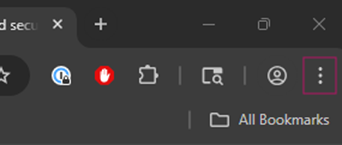
- While Google Chrome is open, click the three dots icon on the top right of the screen.
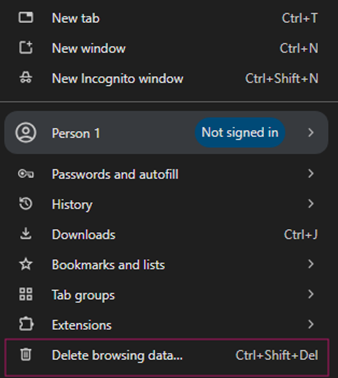
- Select “Delete Browsing Data” from the list.
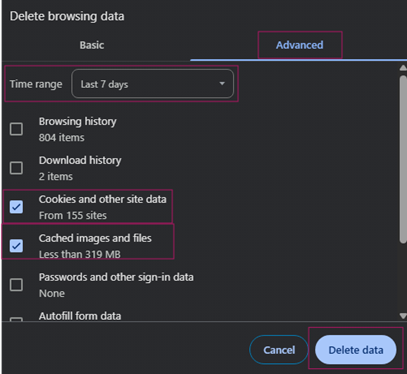
- In the window that pops up, select the “Advanced” tab.
- Time Range: 7 Days.
- Make sure only “Cookies...” and “Cached...” are checked in the list.
- Click “Delete Data”
- Close out of Chrome and re-open.


