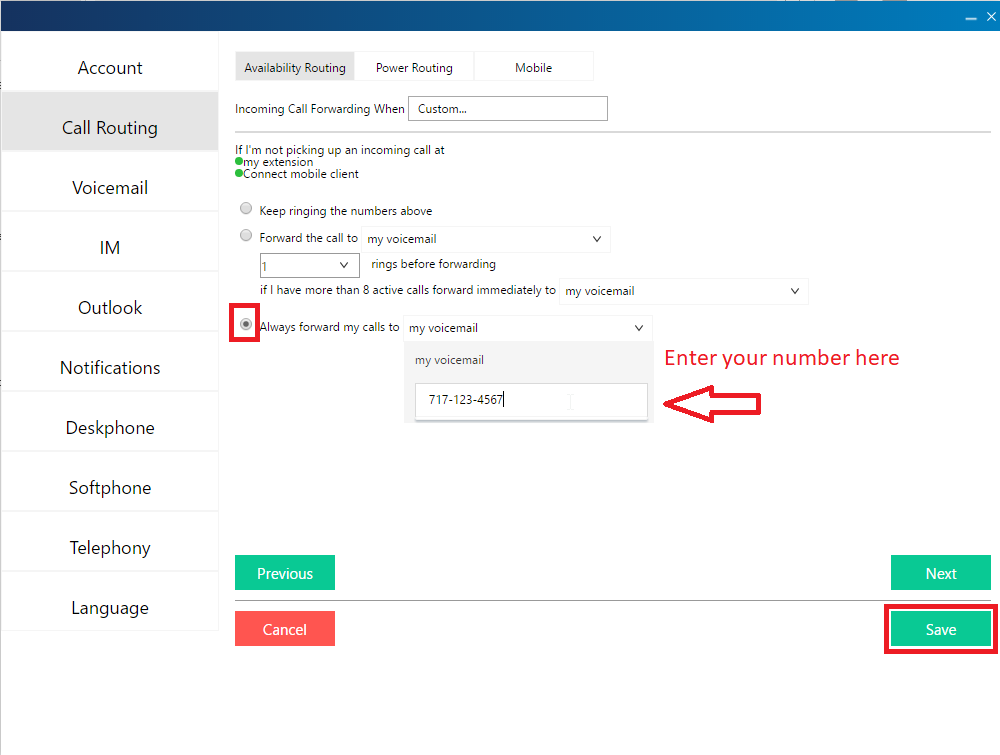
Forward Mitel Desk Phone Calls to Another Phone with Mitel Connect

Aug 18, 2025
220

From Mitel Connect
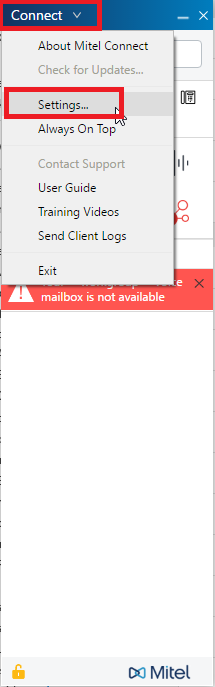
Click Connect, Click Settings.
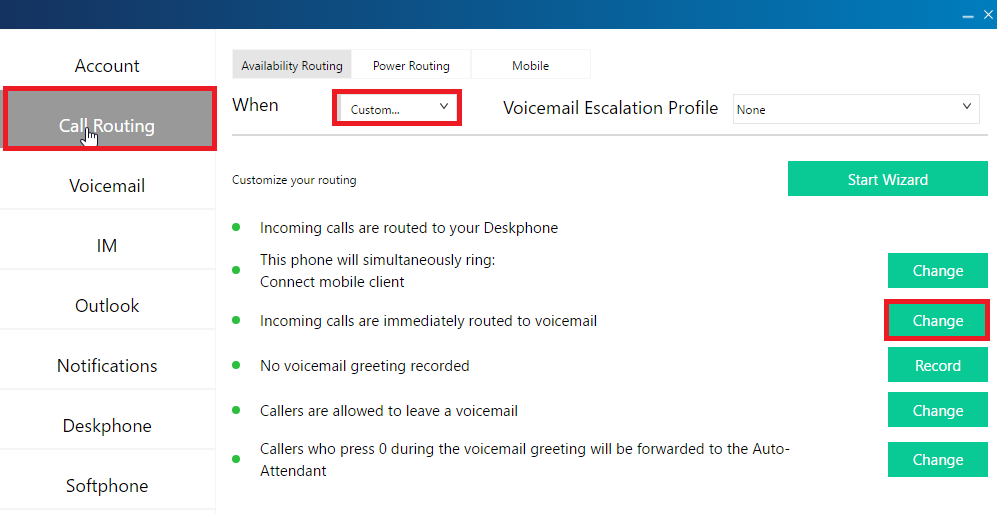
Click Call Routing, then choose an option from the dropdown. I recommend choosing Custom. The click Change next to “Incoming Calls are Immediately Routed to …)
Click the “Always forward my calls to…” radio button, click the dropdown and enter your number (10 digit format), and then click Save. Test.