


Open attached PDF instructions
or
Step 1: Sign in to Microsoft 365
1. Open a web browser (Google Chrome) on your computer.
2. Go to the Microsoft 365 sign-in page.
3. Click Sign In
4. Enter your full MMC email address and click Next.
5. Enter your MMC computer password and click Sign in.
Step 2: Begin MFA Setup
1. You will be prompted to enroll in MFA, you may see a message indicating that your organization requires MFA. Click Next.
Step 3: Install the Microsoft Authenticator App
1. On your smartphone, go to the App Store (Apple iOS) or Google Play Store (Android) and Search for Microsoft Authenticator or use one of the QR codes/links below and install the app.
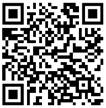
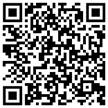
Step 4: Set Up the Authenticator App
1. Open the Microsoft Authenticator app on your smartphone.
2. Tap Accept on the Privacy statement.
3. Tap Continue
4. Tap on the + icon (upper right corner) (or Add account).
5. Select Work or school account.
6. On your computer, click Next. You should see a QR code displayed.
Step 5: Scan the QR Code
1. On your phone, click Scan a QR Code, allow the Microsoft Authenticator app to access your camera if needed.
2. Use your phone to scan the QR code on the computer screen.
o If you’re unable to scan, you can select Or enter code manually and follow the instructions.
3. Allow Notifications from Authenticator (if asked)
4. Tap Moravian Manor - <YourEmailAddress>
Step 6: Verify the Setup
1. Once the app has successfully added your account, it will generate a verification code.
2. Enter the code displayed in the app back into the prompt on your computer and click Verify.
Step 7: Complete the Setup
1. After verification, you should see a message indicating that your MFA setup is complete.
2. Review your security info settings and click Done.
Step 8: Test MFA
1. Sign out of your Microsoft 365 account on the computer web browser.
2. Sign back in to test the MFA setup.
3. You should receive a notification on your Microsoft Authenticator app or be prompted to enter a verification code.
Additional Information
- If you encounter issues during the process, please contact the IT support team for help. MMC Portal or [email protected]
- There is a good video that shows the general process here:


