Removing and Adding MMC email to Outlook Mobile

Jul 16, 2025
618

How to Remove and Re-Add MMC Email for Microsoft Outlook Mobile
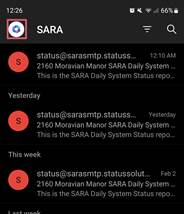
- Select the icon in the top left corner of the app
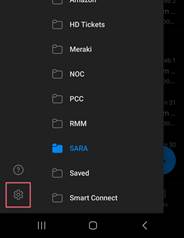
- Select the Settings icon in the bottom left of the pop-out menu.
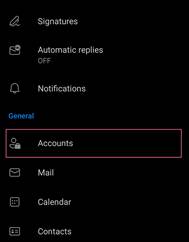
- Select “Accounts” in the list.
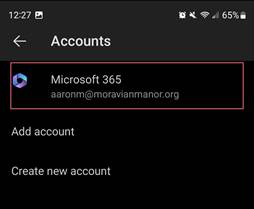
- Click on your MMC account (i.e. [email protected])
- Scroll down the list until you see “Remove Account” and select that option.
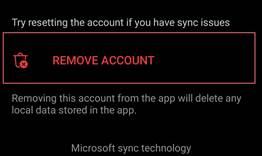
- Select “Only this device” if prompted.
- Once the account is removed, you will be brought back to the sign-in screen. Click “Add Account”
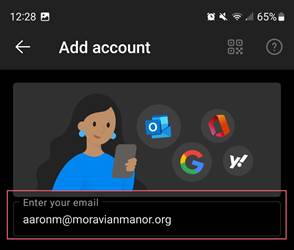
- Enter your MMC Email (I.E. [email protected]), click “Continue”
- Enter your password and conduct MFA if prompted.
- Select “Maybe Later” when asked if you would like to add another account.