Verifying your MFA Device

Jul 16, 2025
80

When signing into Microsoft Outlook (Classic), if you receive the following message, the steps below will assist.
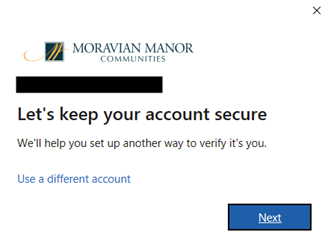
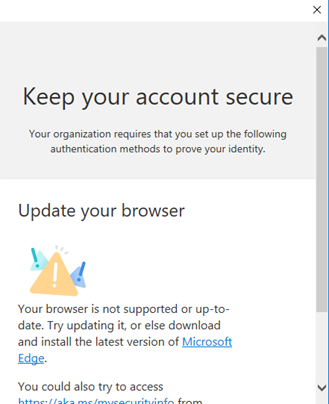
- Close Microsoft Outlook (Classic)
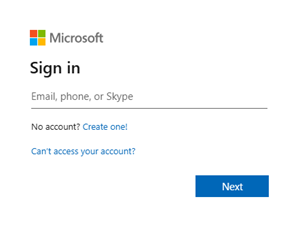
- Browse to https://www.office.com on Google Chrome. Click “Sign In.”

- Enter your Moravian Manor email and computer password, click “Next.”
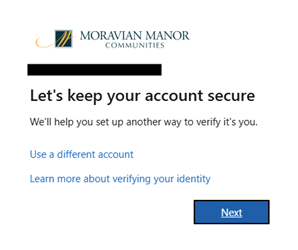
- Microsoft will request to Authenticate your MFA device, click “Next.”
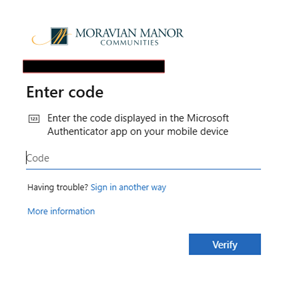
- You will be prompted to provide the 6-digit code from your Microsoft Authenticator app. After you put in the 6-digit code, press “Verify.”
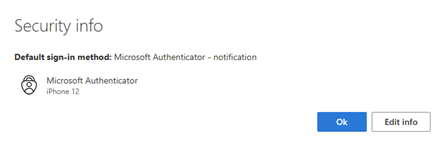
- Microsoft will ask if the cell phone information is up to date. If the information looks correct, press “Ok.”
- Microsoft will then redirect you to the main Microsoft 365 webpage.
- From here you can close out of Google Chrome, open Microsoft Outlook (Classic), and sign in normally.